Pulse
The metronome tab you'll open more than anything else — tempo, meter, odd groupings, and every click option in one place.
Pulse is the tab you'll live in. It's Lazy Lopez: Drums's metronome — not a stripped-down utility tucked into a settings menu, but its own full tab, one you'll open more than anything else in the app. If you played a string instrument before this, think of it as filling the role the tuner played there: always one tap away, because you need it constantly.
There's also a Metronome tool inside the Practice Hub, and it's easy to wonder why the app has two. Short answer: it doesn't, really. Both run on the exact same underlying engine, so there's only ever one click going at a time no matter which one you started it from. Pulse is the fuller version — every control, every option, front and center. The Practice Hub's Metronome is a smaller, embeddable version of the same thing, meant for standing alone or getting pulled into loops and routines. This page covers Pulse; the Metronome page covers how the two actually differ.
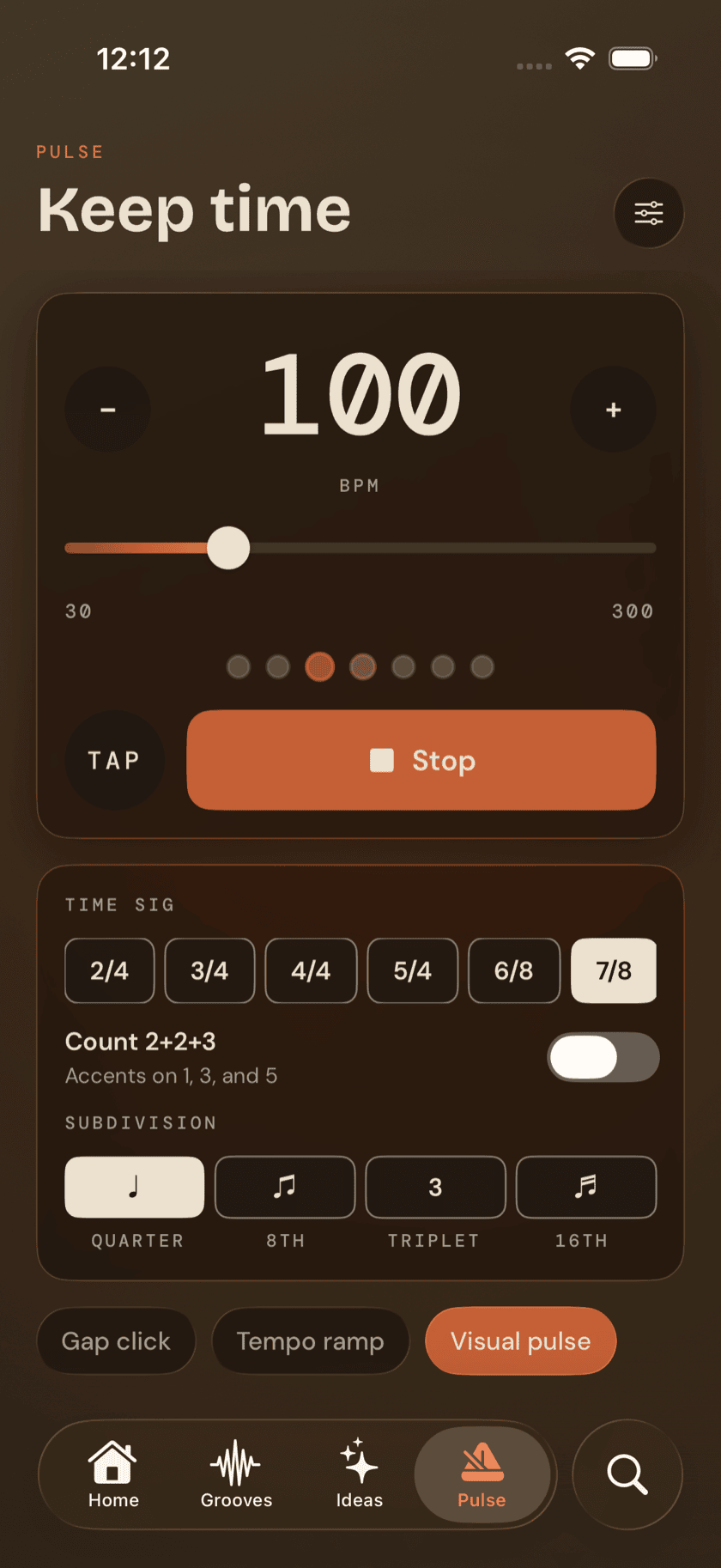
The hero card
Everything you need to keep time lives on one card. The BPM readout sits front and center — big enough to read at a glance, and you can swipe up or down on it to nudge the tempo by 1 BPM at a time. Flanking it, minus and plus stepper buttons do the same job with taps; hold either one down and it accelerates, so you're not tapping forty times to get from 90 to 130.
Below the readout, a drag slider spans the full range Pulse supports — 30 to 300 BPM. Below that, a row of beat dots tracks your position through the measure in real time, lighting up as each beat passes.
A tap tempo button lets you set the BPM by feel instead of by number — tap along to a groove in your head a few times and Pulse figures out what tempo that is. A large Start/Stop button runs the whole thing.
If you've got a tempo ramp active, a hint line appears above the slider telling you what's happening — something like "+2 BPM every 2 bars → 140" while it's climbing, or "holding at 140" once it arrives. If you've got a gap click running, the beat dots dim during a rest bar and a "RESTING" label appears, so you can still see where you are in the bar even when the click's gone quiet.
Time signatures and subdivisions
Below the hero card, a meter card holds a scrollable row of time-signature chips: 2/4, 3/4, 4/4, 5/4, 6/8, 7/8, and 12/8. This is where Pulse earns its keep for anyone playing outside 4/4 — 5/4 and 7/8 aren't afterthoughts, they're first-class options right in the chip row. Those seven are quick picks rather than the whole list — a Custom chip at the end of the row opens the meter editor, and anything you build there gets its own chip, already selected.
Select 7/8 and a "Count 2+2+3" toggle appears underneath, with the subtitle "Accents on 1, 3, and 5." Flip it and Pulse switches from accenting only beat 1 to accenting the full 2+2+3 grouping — the difference between hearing 7/8 as one long bar and hearing it as the three short phrases most 7/8 grooves are actually built from.
Below the meter chips, a row of four subdivision symbols — quarter, eighth, triplet, sixteenth — lets you set what the click subdivides into, glyph and all.
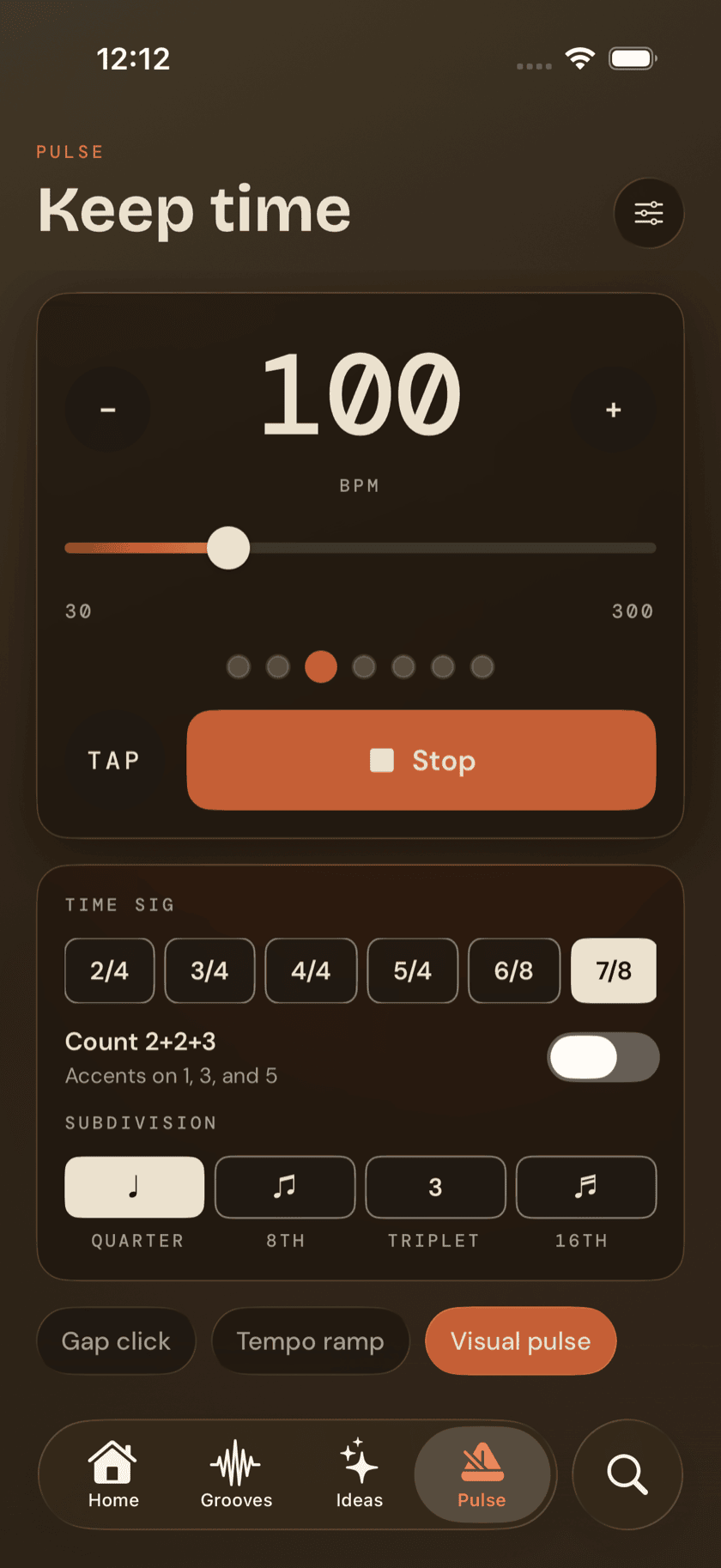
The Count toggle appears whenever the meter has an internal grouping worth accenting — 7/8's 2+2+3, or whatever you set on a custom meter. Pick one that divides evenly, like 4/4, and it disappears: there's nothing to configure when every beat is the same length.
Any time signature
The Custom chip opens a Custom Meter sheet, and it's the answer to "my tune isn't in any of these." A Beats stepper sets the numerator anywhere from 1 to 64, and three pills — /4, /8, /16 — set what those beats are counted in. That's 17/8, 33/8, 11/16, whatever the chart says.
The grouping is the real point, though. A numerator on its own doesn't describe an odd meter: 7/8 is 2+2+3 or 3+2+2 depending on the tune, and 17/8 as "compound nine plus eight" is 3+3+3+3+3+2 — nothing can infer that from the number 17. A Counted as field takes the sum you actually count, and it has to add up: type a grouping that doesn't total the numerator and the sheet tells you what it came to and what it needs, rather than letting you save a bar that doesn't close.
Whatever you set drives all three surfaces at once — the notation beams it that way, the grid shades its columns that way, and the click lands where you count. A Grid control underneath picks how finely the bar is divided, so the editor's cells stay a sensible size instead of scrolling forever.
Custom meters aren't Pulse-only. The same sheet sits behind the time-signature row in the groove editor, so a pattern you write in 17/8 and the click you practice it against are describing the bar identically.
Gap click, tempo ramp, and visual pulse
Three feature pills sit below the meter card. Gap click and Tempo ramp both open the settings sheet when you tap them, and their labels update once you've set them up — Gap click becomes something like "Gap 4·2" once you've picked bar counts, and Tempo ramp becomes "Ramp → 140" once a target's set. Visual pulse is different — it's a toggle, not a shortcut, and it flips right there on the pill without opening anything.
Visual pulse does exactly what it says: a soft glow in your theme's accent color washes across the full screen on every beat, brighter on the downbeat. It's built for one specific situation — the metronome still works with the sound off. Headphones died, you're in a room where you can't run audio, doesn't matter. It's on by default.
Metronome settings
Tap the gear icon in the header and a settings sheet opens with everything Pulse's click can do.
Gap click. A toggle with the subtitle "Play a few bars, rest a few — keep time through the quiet," plus Play and Rest bar pickers, each running 1 to 4 bars. Set it to play 4 and rest 2, and the click drops out every third cycle while you keep the time in your head — the beat dots and RESTING label on the hero card still track where you are.
Tempo ramp. A toggle with the subtitle "Ease toward a target tempo, a few BPM at a time. At the target, it just stays." Below it, a Target BPM field, a BPM-per-step control (1, 2, 4, or 8), and a bars-per-step control (1, 2, 4, or 8) — so you set where you're headed and how fast you get there, and Pulse handles the climb.
Sound. Four click tones: Wood, Click, Cowbell, Mute.
Click. Three more toggles. "Accent beat 1," subtitled "Emphasize the downbeat." "Visual pulse," the same toggle and the same state as the feature pill above — flip it here or on the pill, it's one setting. And "Mix with other audio," whose subtitle changes depending on which way you've got it set: "Clicks over music; no lock-screen controls" or "Lock-screen controls; pauses other audio."
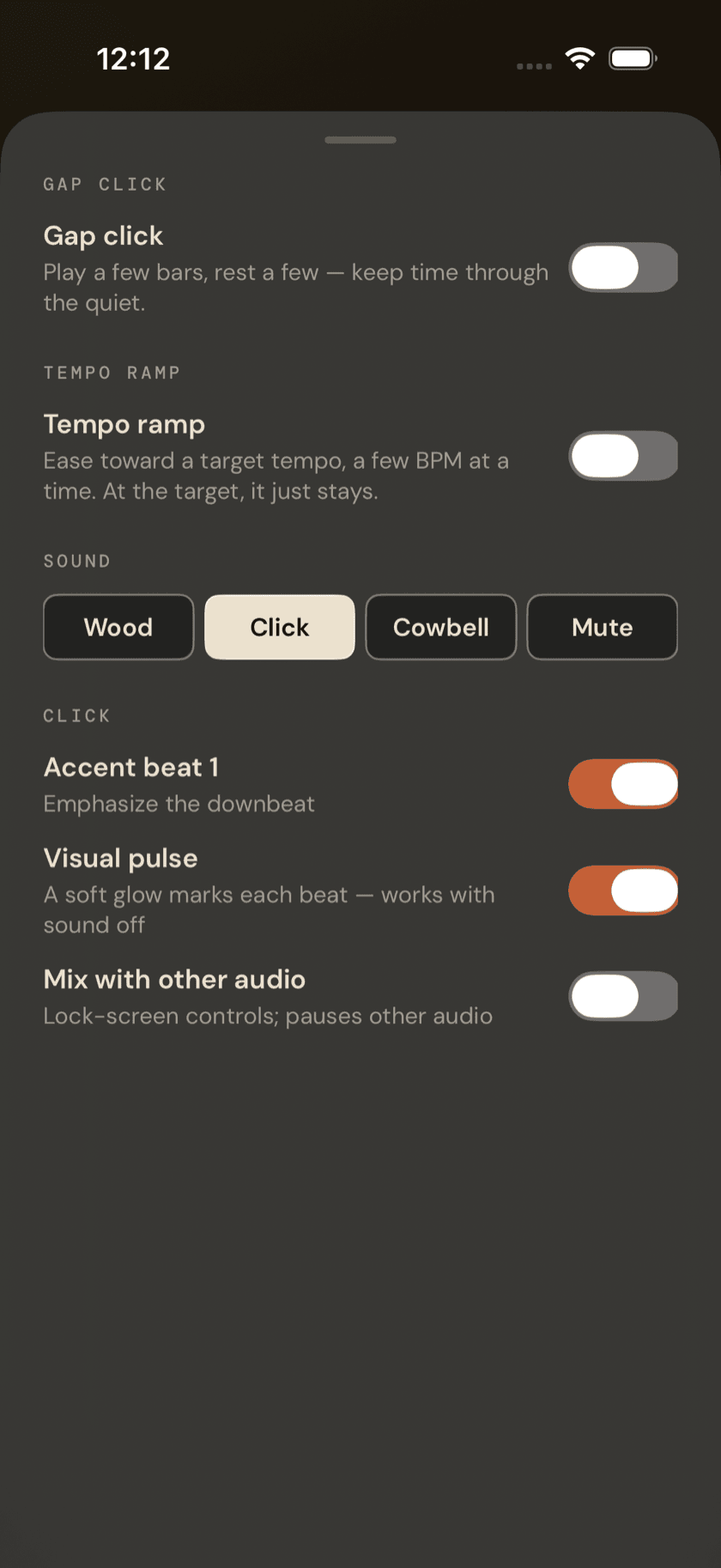
The "Mix with other audio" trade-off is real, not cosmetic. Let Pulse mix with your music and you lose lock-screen transport controls for it. Give it exclusive audio and your music pauses when the click starts. Pick whichever you'll actually miss less.
Sit down and play.
Learn grooves, capture ideas, jam with a live band, and keep time — free, local-first, on iPhone, iPad, and Mac.
Explore Lazy Lopez: Drums →