Lazy Lopez: Drums Everywhere
Lazy Lopez: Drums isn't only an iPhone app — this page covers what's different on iPad, Apple Watch, Widgets, and Mac, and what carries over between them.
Everything described elsewhere in this guide is written from the iPhone's point of view, because that's where most practice happens. But the app doesn't stop there. iPad and Mac run full, native versions — not a stretched phone screen — Apple Watch gets its own standalone app, and a Home Screen widget and Live Activity surface the parts you need most without opening the app at all. This page covers what changes on each.
iPad
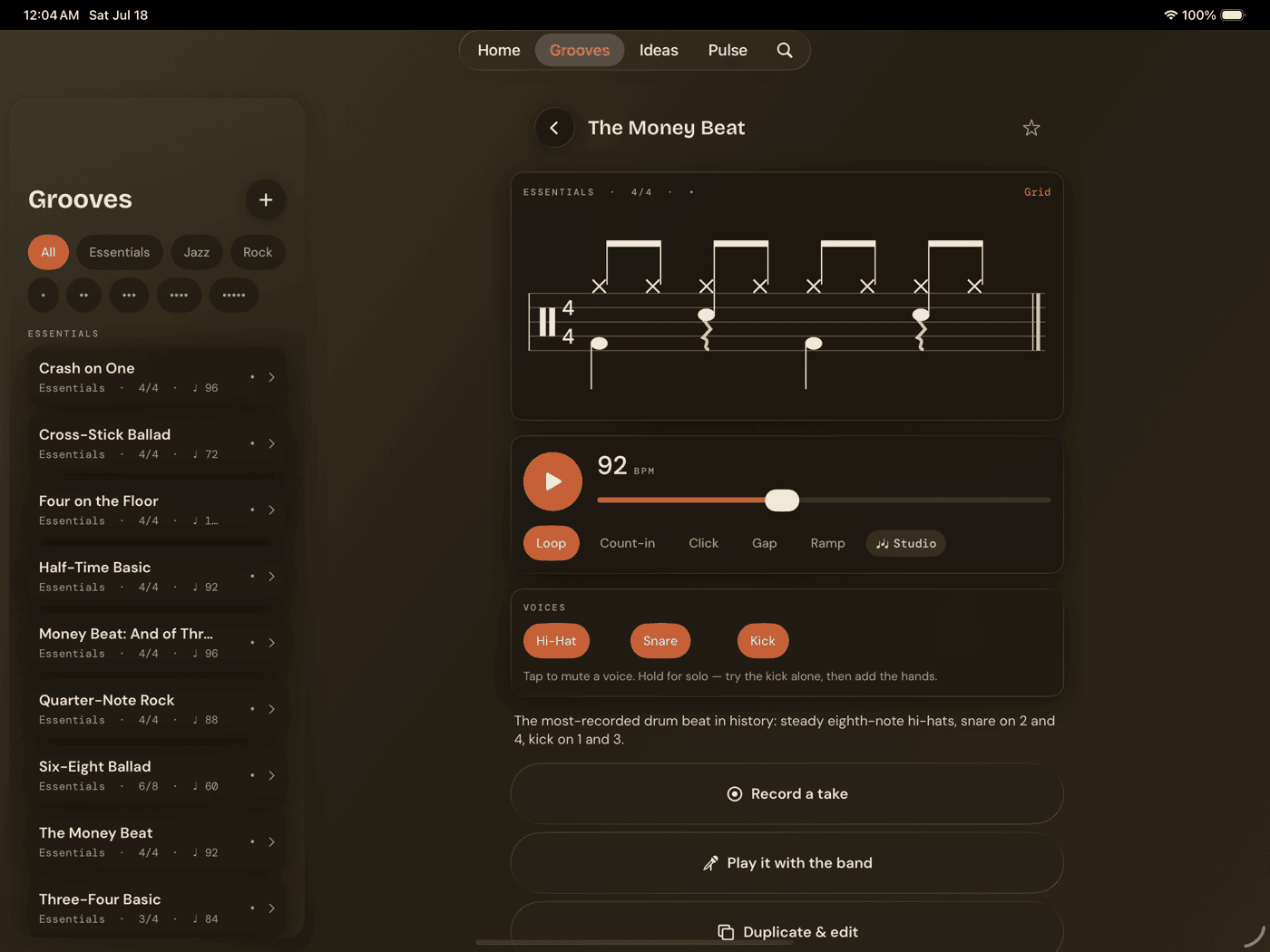
Two screens in the app work differently here. On iPhone, both Grooves and Ideas push you from a list onto a detail screen, then pop you back when you're done. On iPad, the list becomes a permanent sidebar instead — tap an entry and the detail opens on the right, sidebar still visible, nothing pushed off screen. Grooves and Ideas each get this treatment as their own master/detail split view, the same push/pop-becomes-always-visible pattern the rest of the Lazy Lopez Music family uses on iPad.
Home changes shape too. The action cards that stack 2×2 on iPhone — the ones that open New Groove, Capture Idea, and the rest — line up in a single row of four instead, since there's finally the width to spare.
Jam's landscape Performance Mode isn't iPhone-only either. Open Jam on an iPad already in landscape and you get the same hands-free layout, just with more room — the side rail holding tempo, tap tempo, and transport has space to breathe.
On iPhone you exit Performance Mode by rotating back to portrait. iPad has no reliable rotate-back gesture to hook into, so there's an explicit back-chevron on screen instead. iPhone doesn't need one; iPad does.
Apple Watch
Lazy Lopez: Drums's Apple Watch app is standalone — it works without your phone nearby, not just as a remote control for it. It's also deliberately lean: haptic metronome and tap tempo, and nothing else. One screen, no grooves, no rudiments, no library. Your wrist isn't where you browse patterns; it's where you keep time.
That one screen holds a large BPM readout, adjustable with the Digital Crown or a pair of ±5 buttons, a TAP button for tap tempo, four beat dots tracking your position in the bar, and a play/stop transport. A separate button cycles through four time signatures — 2/4, 3/4, 4/4, 6/8 — in that order, looping back around.
Every beat does two things at once: a haptic tap on your wrist and a synthesized click through the Watch speaker. Play it silent and felt, or let it play out loud — either way works.
A phone screen has room for grooves, rudiment drills, and a full Practice Hub. A watch face doesn't. Rather than cram a shrunken version of everything onto your wrist, Lazy Lopez: Drums picked the one thing you actually reach for mid-song when you can't touch your phone — tempo — and built the whole app around just that.
Widgets
A Home Screen widget puts one-tap deep links right on your springboard. The small size skips any choice and opens straight to Pulse — the thing you'll open most, so it gets the shortest path. The medium size shows three separate tap targets instead, one each for Pulse, Grooves, and Jam.
There's also a Live Activity, showing on the Lock Screen and in the Dynamic Island whenever something's actively running — a metronome session, a recording, a practice session, a jam, or a rudiment drill. It shows whichever of BPM or elapsed time actually matters for what you're doing, so you can glance at your Lock Screen instead of unlocking the phone to check.
Mac
Lazy Lopez: Drums on Mac is a native app, not an iPad build stretched onto a bigger screen, and it's live on the App Store now. The tab bar is gone; in its place, a sidebar split into two groups. Library holds Home, Grooves, and Ideas. Play holds Jam, Practice, Pulse, and Search.
A real Mac menu bar comes with it. File ▸ New Groove… (⌘N) and File ▸ Capture Idea… (⇧⌘N) jump straight into those flows without touching the sidebar. A View menu lists all six sidebar destinations on ⌘1 through ⌘6, and ⌘F opens Search from anywhere in the app.
Two more Mac conventions are wired up where you'd expect them. Lazy Lopez: Drums ▸ Settings… (⌘,) opens preferences in a proper Settings window rather than a sheet slid over the app, and it holds the same options the iPhone keeps in Settings. The User Guide row inside it opens this site in your default browser — with tabs, search, and bookmarks — instead of the in-app reader iPhone and iPad use.
What doesn't come along: the Apple Watch app, the Home Screen widget, and Live Activities are iPhone companions and have no Mac equivalent. Everything else — the full groove library, notation, the grid editor, Jam, Practice, Pulse, recording — is the same app.
The menu bar isn't a decorative extra bolted on for App Store checkboxes — ⌘N and ⇧⌘N mirror the two flows you're most likely to start cold, and the ⌘1–⌘6 destinations cover the same ground as the iPhone tab bar and Practice Hub combined, just reachable without ever touching a trackpad.
What carries over between devices
Nothing syncs, and that's the deliberate trade for having no account. Lazy Lopez: Drums never asks you to sign in, so there's no server holding a copy of your library and no iCloud container quietly mirroring it. Install it on a second device and you get a fresh, empty app — your grooves, ideas, and practice log stay on the device that made them.
There is a way to move the part that's easiest to lose. Settings ▸ Your data writes one file holding your practice log, your custom routines, your saved loop and jam setups, and your favorites, and reads it back on another device. Restoring is additive and never destructive: anything already on the device is skipped, nothing is overwritten or deleted, so restoring the same file twice does nothing the second time and restoring onto a device you've already been practicing on is safe.
Three things aren't in that file — your ideas, your recordings, and the grooves you built yourself. Those are audio and database records rather than settings, and folding them in would turn a small text file into something you couldn't email yourself. Recordings export as audio files and move separately.
Backup files are per-app. Guitar, Bass, and Lazy Lopez: Ukulele write the same kind of file, but routines, grooves, and rudiments are instrument-specific — so each app stamps its own name on its backup and declines the others by name rather than importing something meaningless.
Sit down and play.
Learn grooves, capture ideas, jam with a live band, and keep time — free, local-first, on iPhone, iPad, and Mac.
Explore Lazy Lopez: Drums →